

Meta doesn’t publish the rules behind these decisions, so no step here
guarantees your number won’t be restricted. A complete, verified business
profile gives Meta more to trust and strengthens your appeal if a review
happens.
How to recognize it
- The WhatsApp Business app shows account in review or This account can’t use WhatsApp, usually with a Request review button.
- In Meta Business Suite, the WhatsApp account’s Account status shows Review in Progress.
- iZap shows the number as connected, but nothing arrives or messages fail with error 131031 (Business Account locked).
- Access comes back for a few minutes and then locks again.
Complete your business profile in Meta
Do these steps in order in Meta Business Suite. Use real data that matches your business’s official records.1
Fill in the business info
Open Settings → Business info. Under Business details, click
Edit and fill in the Legal business name, Address,
Business phone and Website. Empty fields show as “No name”, “No
address”, “No phone” and “No website”.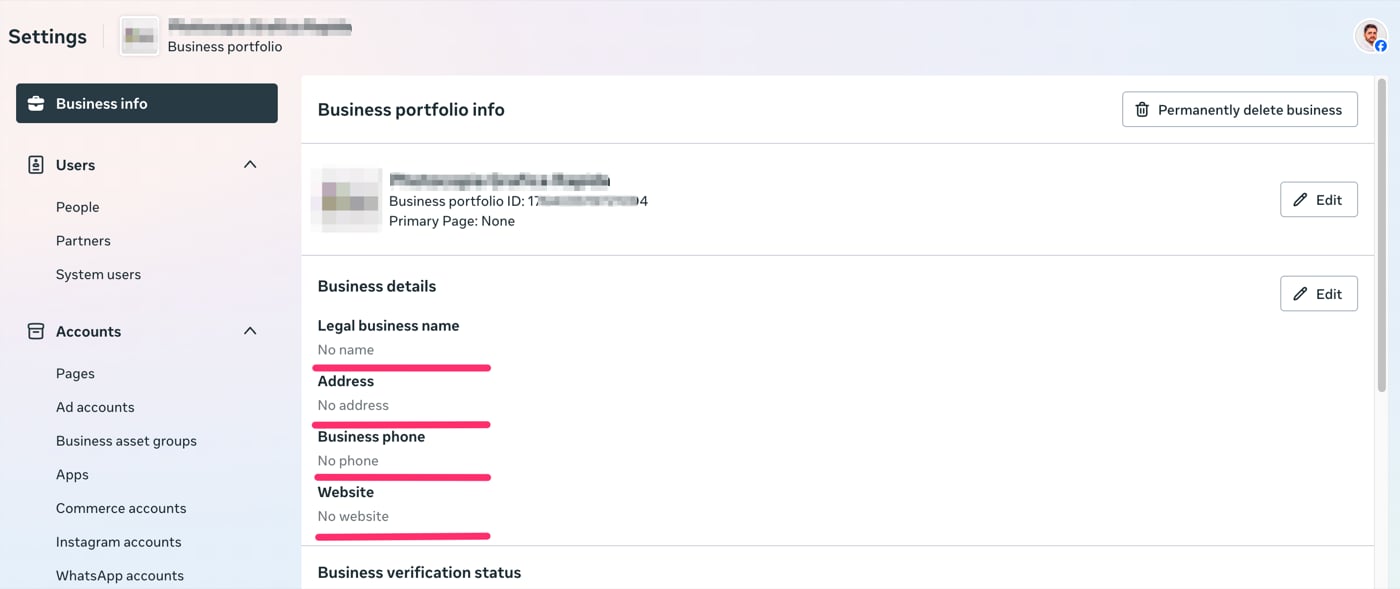
2
Complete the WhatsApp account details
Open Settings → Accounts → WhatsApp accounts, select your
account and stay on the Summary tab. Click Edit and fill in the
Address, Currency and Time Zone.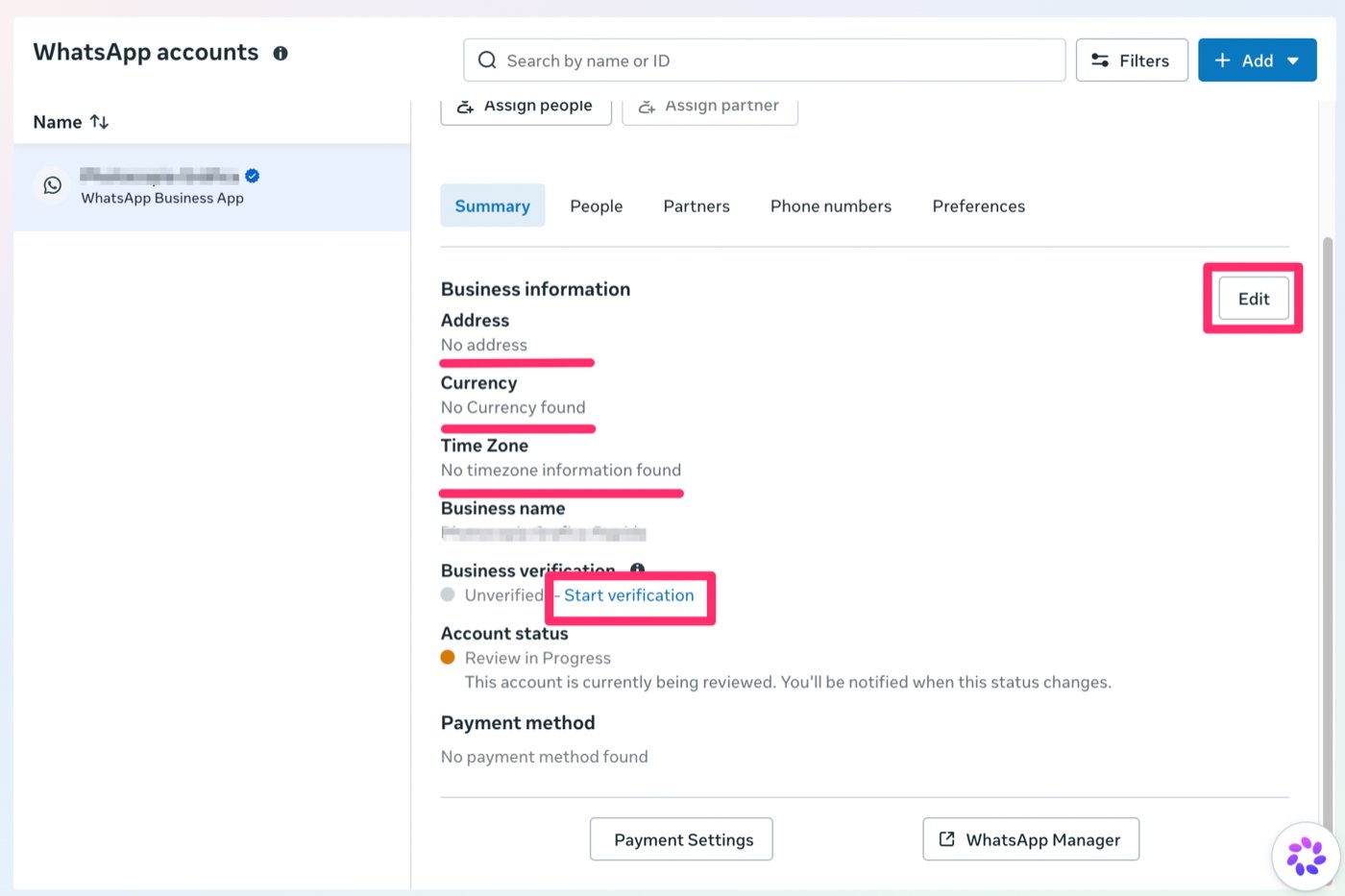
3
Add a payment method
On the same Summary tab, under Payment method, click Payment
Settings and add a card. See the last step of the
connection guide.
4
Start Business Verification
On the Summary tab, click Start verification next to Business
verification, or open the Business Verification card in the Security
Center. Choose the use case Verify my business to build trust or meet
regulatory requirements, click Start verification and enter your
legal business details exactly as they appear in your official documents.
Meta may ask for supporting documents.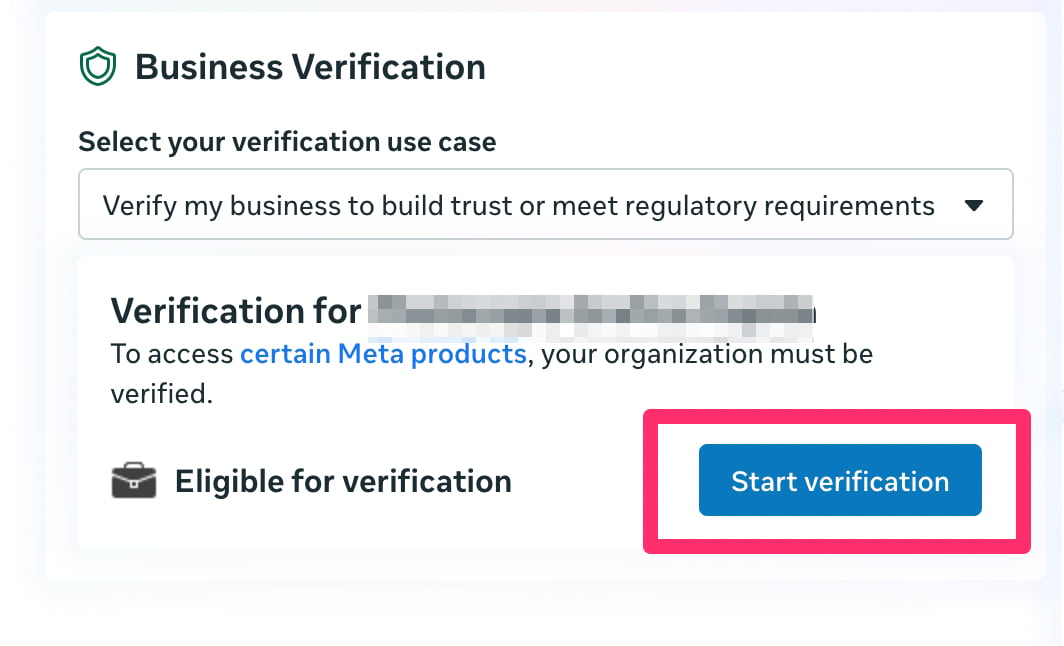
5
Use a business display name
The display name must represent your business, such as your brand name. Meta
rejects names that look like a personal name. If yours was rejected, edit
it in WhatsApp Manager and submit a business name.
If your number is already restricted
1
Open Business Support Home
Go to business.facebook.com/business-support-home
and select the affected business. Meta shows the violation or restriction
there.
2
Request a review
Click Request review on the restriction, or on the button shown in the
WhatsApp Business app.
3
Explain your situation
Be short and factual. Say that:
- You are a real business, and give its name and website.
- You only have two-way conversations with customers who already know you.
- You don’t send bulk or unsolicited messages.
- The restriction appeared right after you connected the number, before you sent any messages.
What not to do
- Don’t uninstall the WhatsApp Business app or delete the WhatsApp account.
- Don’t disconnect the number to “speed up” the review. It doesn’t help.
- Your conversation history imported into iZap is kept.
- Don’t submit review requests over and over. One clear request is enough.
Numbers that also use the WhatsApp Business app
If the number uses the WhatsApp Business app together with iZap (coexistence), wait until the number works again. Then, if you no longer want it on the API, disconnect it in the app: Settings → Account → Business Platform → Disconnect account. In iZap, Deregister number only revokes iZap’s access. For these numbers, Meta refuses to deregister them through the API. See Manage your numbers.Avoid new restrictions
- Reply with free-form messages only within 24 hours of the customer’s last message.
- To start a conversation, use an approved message template.
- Don’t send bulk broadcasts from a freshly connected number. Start with small volumes to people who expect to hear from you.
Number shown as “Ineligible” in Meta signup
In the Add your WhatsApp phone number step of Meta signup, the number shows up disabled in the Phone list, with an Ineligible badge and the message This number can’t be shared with this app. This happens when the WhatsApp Business app is integrated with the Meta Business Suite Inbox: while that integration is active, Meta won’t let the number be shared with any provider, iZap included.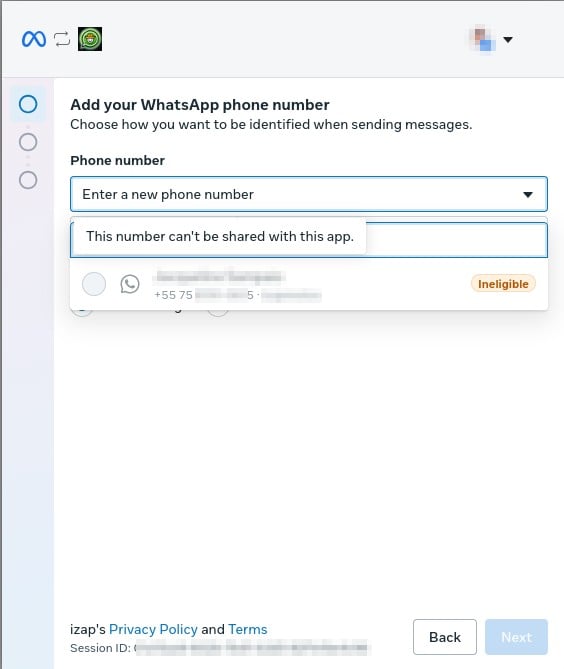
1
Confirm the cause in Meta Business Suite
Open Settings → Accounts → WhatsApp accounts, select the
account and open the Partners tab. If the Assign partner button is
disabled with the message “This account can’t be shared with a partner
because it uses Inbox”, the Inbox integration is the cause.
2
Disconnect the integration in the app
In the WhatsApp Business app, open Settings → Account →
Business Platform and disconnect the Meta integration.
3
Connect the number to iZap again
Redo the connection following the
connection guide. The number now shows
up as available for coexistence.