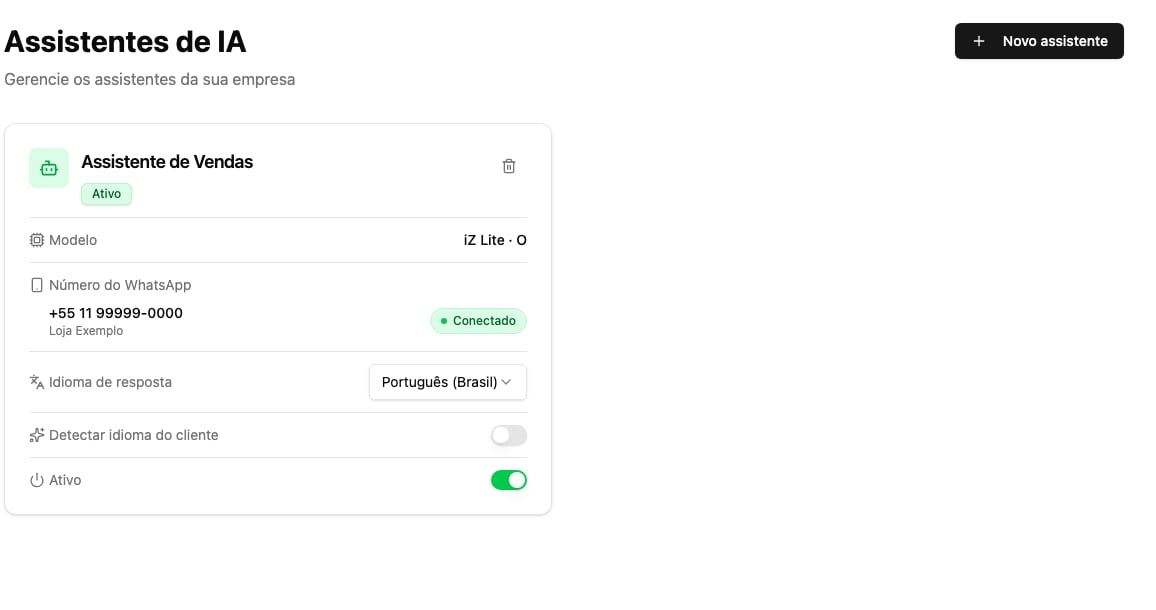
Turn the assistant on or off
In the dashboard, open AI Assistants. Each assistant has an Active switch:- On: the assistant answers customers on its WhatsApp number.
- Off: the number stops replying completely. It stays connected and your conversation history is kept.
The Trainer’s test chat keeps replying even when the assistant is off. It’s
there for you to train and test — it never reaches your customers and doesn’t
count toward your plan.
Which number the assistant answers
Each assistant’s card shows the WhatsApp number it answers on. Each number has one assistant at a time. If a number has no assistant, pick one under Assign an assistant. If a number’s assistant is switched off, no other assistant takes over: the number simply has no automatic replies.Pause the AI in a conversation
Automatically, when you reply from your phone
If you or someone on your team replies to a customer from the WhatsApp Business app on your phone, iZap understands that a person took over the conversation and pauses the AI in it. The AI starts replying again on its own after the time set in AI pause — 1 hour, unless you changed it. Automated messages sent identically to several contacts, such as appointment reminders, are usually recognized and don’t pause the AI.Manually, from the dashboard
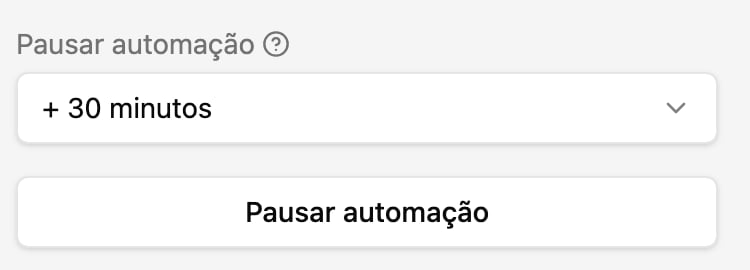
Replying from the dashboard chat does not pause the AI. To take over a conversation from the dashboard, open it in Live Chat and choose one of these options:- In the contact panel, click Pause automation and choose for how long. To hand the conversation back to the AI, click Resume automation.
- In the menu at the top of the conversation, choose Unsubscribe the Assistant. The AI stays paused in that conversation until you choose Resubscribe the Assistant (or for at most 7 days).
Live Chat may not be available on every account. If it doesn’t appear in your
dashboard menu, contact support.
How long the AI stays silent
Open Settings → AI pause to set how long the AI stays silent after a person takes over a conversation or outside business hours. The options range from 15 minutes to 4 hours, plus a custom time of up to 24 hours. The default is 1 hour. On the same screen, turn on Keep AI off after a manual reply if you want the AI to stay off in a conversation once you reply from the WhatsApp Business app, with no time limit. It stays off for that contact until someone turns it back on. To stop every reply, turn off the assistant instead (see Turn the assistant on or off).Business hours
Open Settings → Business hours and set the time ranges for each day of the week. The hours follow your workspace time zone.- During business hours: the assistant replies normally.
- Outside business hours: the assistant doesn’t chat. If you filled in the Message when the business is closed in the assistant’s settings in the Trainer, it sends that message; then it stays silent for the time set in AI pause.
- No hours configured: the assistant replies at any time.
Make instructions reach your customers: publish
In the Trainer, instructions have two buttons with very different effects:- Save keeps the instruction only in the test chat you’re in. It does not change what the assistant replies on WhatsApp.
- Publish applies the instructions to all conversations and to the assistant that answers your customers. The Trainer asks you to confirm, because this action can’t be undone.
Reply language
In the assistant’s settings — in the Trainer or on the assistant’s card in the dashboard — choose the reply Language. Turn on Automatically detect customer language so the assistant replies in the language the customer wrote in, using the chosen language only when it can’t tell. If nobody chose a language, iZap uses the one from your WhatsApp number’s country.Send images in replies
The assistant can send photos of products, menus, or properties:- In the dashboard, upload the images under My Contents → Image Library.
- In the Trainer, create or edit an instruction and add the Send images in the chat action.
- Pick up to 5 images for that instruction and save.
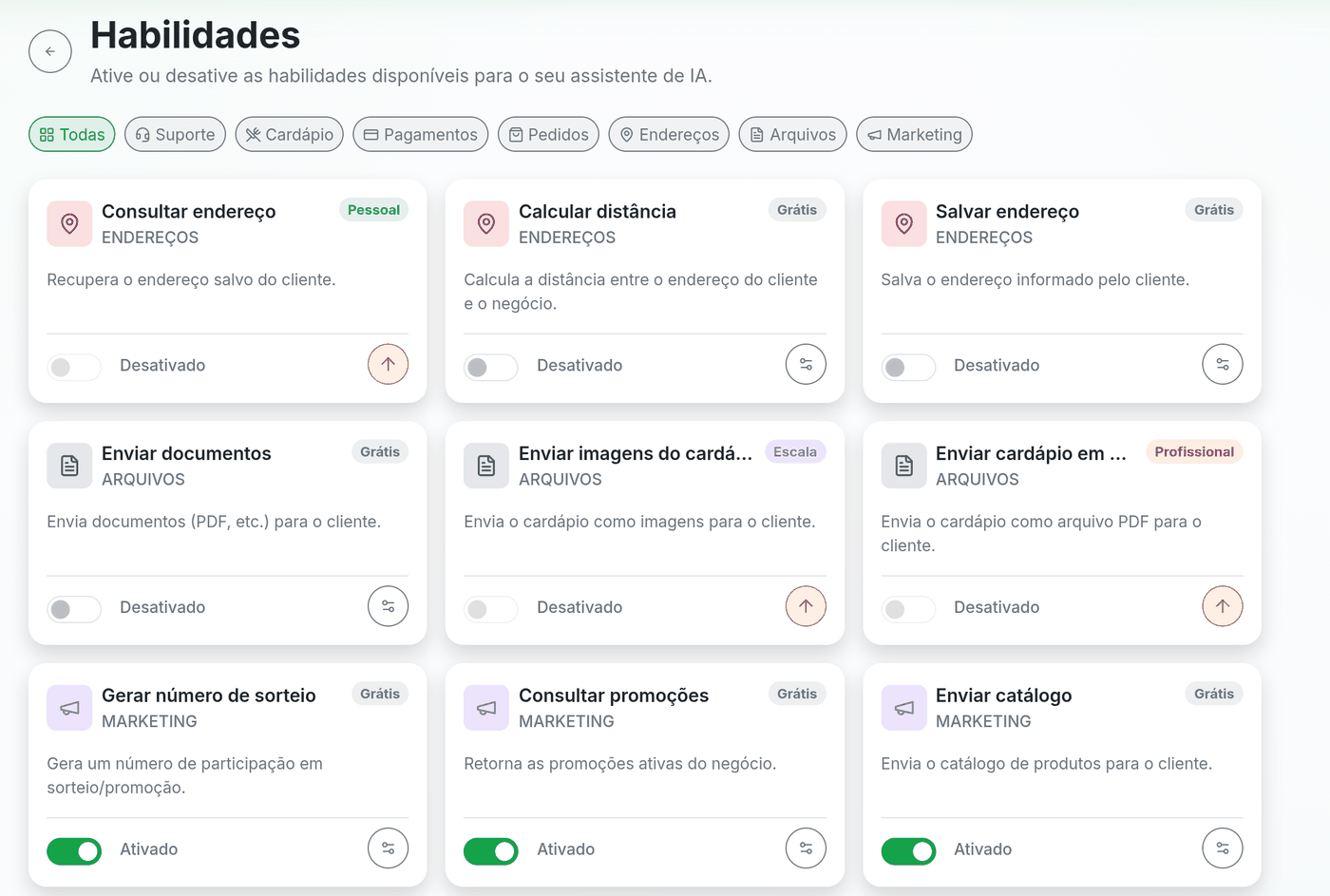
Skills
In the Trainer, the Skills page shows what the assistant can do beyond chatting — for example, Book appointment, View menu, Create order, Send documents, and Human support. Turn on only the ones that make sense for your business.