

Meta only offers to migrate the number
If the number already uses the WhatsApp Business app and you want to keep using the app on your phone, don’t accept migrating it. Meta has no separate option for the app: select the number from the Phone list, or type it if it isn’t listed. When Meta recognizes the app, it shows a QR code to scan with your phone.- Update the WhatsApp Business app to version 2.24.17 or later before you start.
- The number must be on WhatsApp Business, not regular WhatsApp.
- If Meta still asks you to migrate the number or disconnect WhatsApp from your phone, stop and contact support. Don’t confirm that screen.
Error #2494064: the number is still registered in a WhatsApp app
Meta found the number in a WhatsApp app but didn’t open the path that keeps the app. Don’t disconnect anything on your phone to get around it. Check that:- the WhatsApp Business app is version 2.24.17 or later;
- the number is on WhatsApp Business, not regular WhatsApp;
- the number isn’t connected to another WhatsApp API provider.
The number shows as ineligible
Meta decides which numbers can keep the WhatsApp Business app while connected to iZap. First check that you’re an admin of the business portfolio that owns the number (see error #3441038 below). If you are and the number is still ineligible, contact support with screenshots and the time of the attempt. Avoid repeating the flow many times: each attempt can leave an empty account at Meta.Error #2655093: the account is already shared with a partner
What it means: your number’s WhatsApp account is still linked to another provider (another Meta partner), sometimes through a shared credit line. While that link exists, Meta won’t let you connect the number to a new provider. What to do:1
Disconnect the number from the previous provider
Confirm with the previous provider that the number was disconnected from
their platform.
2
Remove the old partner in Meta
In Meta Business Suite, open Settings → Accounts → WhatsApp
accounts, select the number’s account, and open the Partners tab.
Remove any partner left over from the previous provider, including a shared
credit line.
3
Try connecting again
Go back to the Trainer and start the connection again.
If Meta keeps saying the account has reached its partner limit even with no
partner listed, open a case with Meta support. Only Meta can clear that link —
iZap has no access to it.
Error #3441038: you don’t have permission to view this asset
What it means: the number’s WhatsApp account belongs to a Meta business portfolio where your Facebook profile is not an admin. Access to the Facebook Page alone is not enough. What to do:- Ask a current admin of the business portfolio to give you admin access in the Meta Business Suite settings.
- If nobody in your company has that access, open a case with Meta support with proof that the business is yours.
- Once you have admin access, start the connection again.
Too many attempts: try again later
What it means: after several verification-code requests in a row, Meta blocks new attempts for a while to prevent spam. The message sometimes shows the code #3441033. What to do: wait before trying again. The block usually lasts 1 to 2 hours, but it can reach 12 hours if attempts continue. Each new attempt during the block can restart the timer, so stop trying until the time has passed.The dashboard keeps asking me to connect a number I already connected
Check these causes, in this order:- You signed in with a different account. Make sure you’re in the dashboard with the same email you used to connect the number — for example, signing in with Google instead of email and password can open a different account.
- The number is stuck on an old connection. In the WhatsApp Business app on your phone, open Settings → Account → Business Platform and disconnect the platform. Then redo the connection from the Trainer.
- The number is already connected to another iZap account. A number can only be in one iZap account at a time. Remove the number from the account where it is today (see Manage your numbers) and connect it again in the right account.
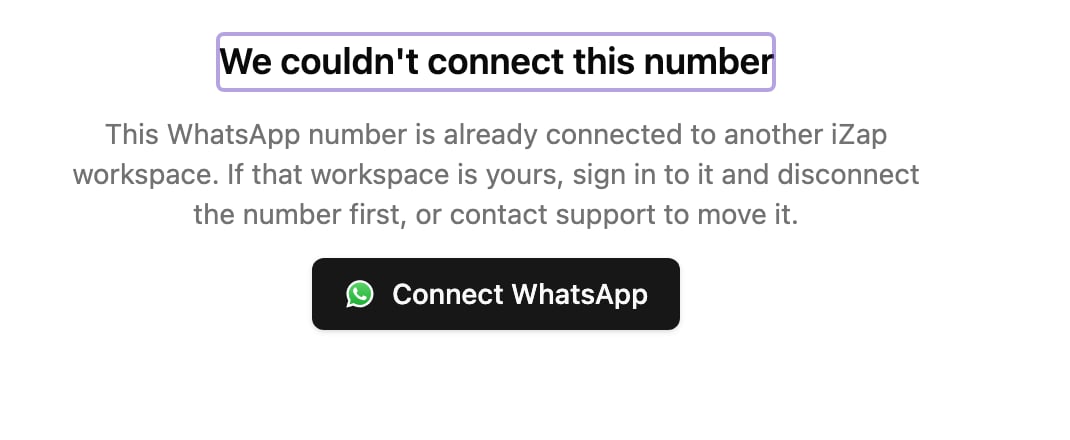
For privacy, support can’t share details about another account. If you own
the number and don’t recognize the account it’s connected to, contact
support: we run an ownership verification that asks for proof that the
number and the business are yours.
The connection finished, but the number doesn’t work
If Meta showed the connection as complete but no messages reach iZap, or the assistant never replies:- The Meta payment method is missing. Meta only finishes activating the number after a card is added under Billing and payments in Meta Business Suite. See the last step of the connection guide.
- There are pending items on your Meta account. An error on the payment method or an incomplete business verification blocks the messages your business starts. Check both in Meta Business Suite.
- If none of that helps, see The assistant isn’t replying.
Error page or “service temporarily unavailable” during the connection
Sometimes the connection window shows an error page or says it can’t onboard customers right now. This is temporary and unrelated to your account. Wait a few minutes and try again. If it keeps happening, contact support.Meta says your business can’t request more numbers
Meta shows Your business already created 2 WhatsApp numbers and can’t request more. A business portfolio without business verification can have only 2 WhatsApp numbers. Earlier connection attempts often leave Meta test numbers (starting with +1 555) that use up both slots. iZap can’t raise this limit.- In Meta Business Suite, open WhatsApp Manager for that portfolio and delete an unused number. Never delete the number you want to connect.
- Or complete business verification, which raises the limit.
- Connect again from iZap, and choose your existing portfolio and WhatsApp account instead of creating new ones.
Connected in the dashboard, but templates or sends fail
If the dashboard shows the number as connected, but creating a template fails (for example with “Unsupported post request”) or messages stop going out, iZap may have been removed from your WhatsApp account at Meta. That happens when someone disconnects the platform in the WhatsApp Business app (Settings → Account → Business Platform) or removes iZap in Meta Business Suite. Connect again from iZap and choose the same portfolio and WhatsApp account. Your number stays where it is. Then create again any template that was rejected.Moving from another WhatsApp provider
If your number is connected to another provider and you want to move it to iZap, contact support before you disconnect anything. Disconnecting in the wrong order can take the number off WhatsApp. Tell us the provider’s name and whether you still use the WhatsApp Business app on your phone, and we’ll send you the steps in the right order.Meta put the number in review or restricted it
If the WhatsApp Business app says account in review or This account can’t use WhatsApp, or sends fail with error 131031, see Number restricted, locked or in review by Meta.The number was working and stopped
If the number was already connected and stopped sending or receiving messages — for example, after a change to your Meta account — contact support before you redo the connection. Redoing the process during an outage can scramble the configuration that already exists. Support checks what happened and, if needed, guides you through redoing the connection the right way.Before you contact support
To help us solve it faster, send to [email protected]:- The number, with the country code.
- A screenshot of the error message, with the code (for example, #2655093).
- The approximate time of the attempt.
- Whether the number uses or has used another WhatsApp provider.