

Invite someone to your team
Give an employee access to the dashboard without sharing your password:1
Open the members
In the dashboard, open Settings → Members.
2
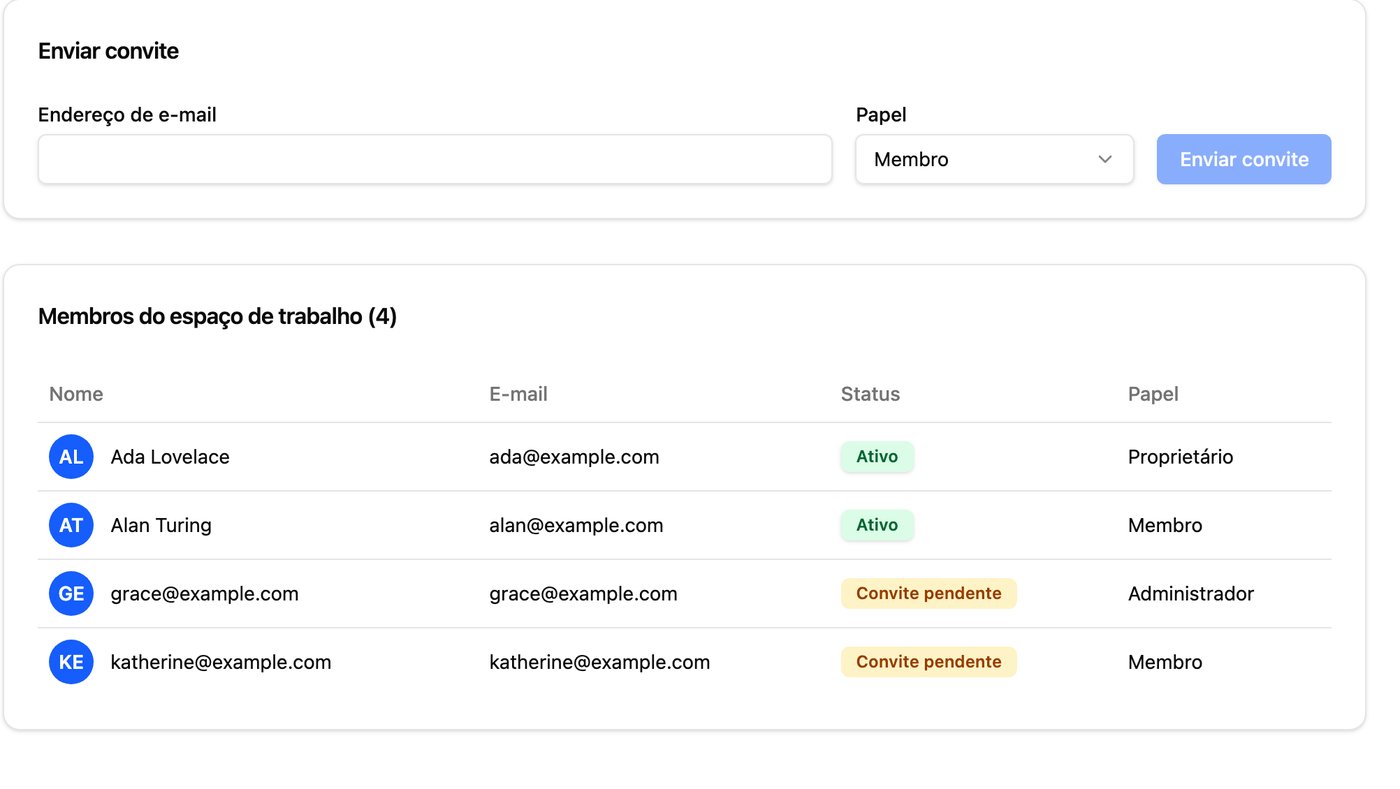
Fill in the invite
Enter the person’s Email address and choose their Role.
3
Send it
Click Send invite. The person receives an email to join the workspace.
Roles
The main roles are cumulative — each one includes what the previous one can do:- Viewer: can only look at information.
- Member: works on day-to-day customer service.
- Administrator: manages the workspace and the team.
- Owner: full access. Only the Owner manages billing and WhatsApp numbers.
Rename the workspace
Open Settings → Profile and change the workspace name.Create another workspace
In the top-left corner of the dashboard, open the workspace selector and click Create new workspace. Each workspace has its own numbers, assistants, and plan. It’s the recommended way to keep different businesses apart or to connect a second number without touching the first one.Change the dashboard language
Click your avatar in the top-right corner and choose Language. The options are Português, English, and Español. This only changes the dashboard language — not the language the assistant uses with your customers.Delete your account
1
Open your settings
Click your avatar in the top-right corner and choose Your settings.
2
Go to Security
Open the Security tab and, in the Delete account block, click
Delete my account.
3
Confirm
Type your email and click Permanently delete my account.
- If you’re the only Owner, the workspace is closed too: members lose access, API keys are revoked, and the subscription is cancelled.
- If there’s another Owner, only you leave. The workspace keeps working for the rest of the team.