

Where your numbers are
In the dashboard, open Integrations and choose WhatsApp. The list shows each connected number, its connection status and, in the Actions column, the ⋮ menu with the options for each number.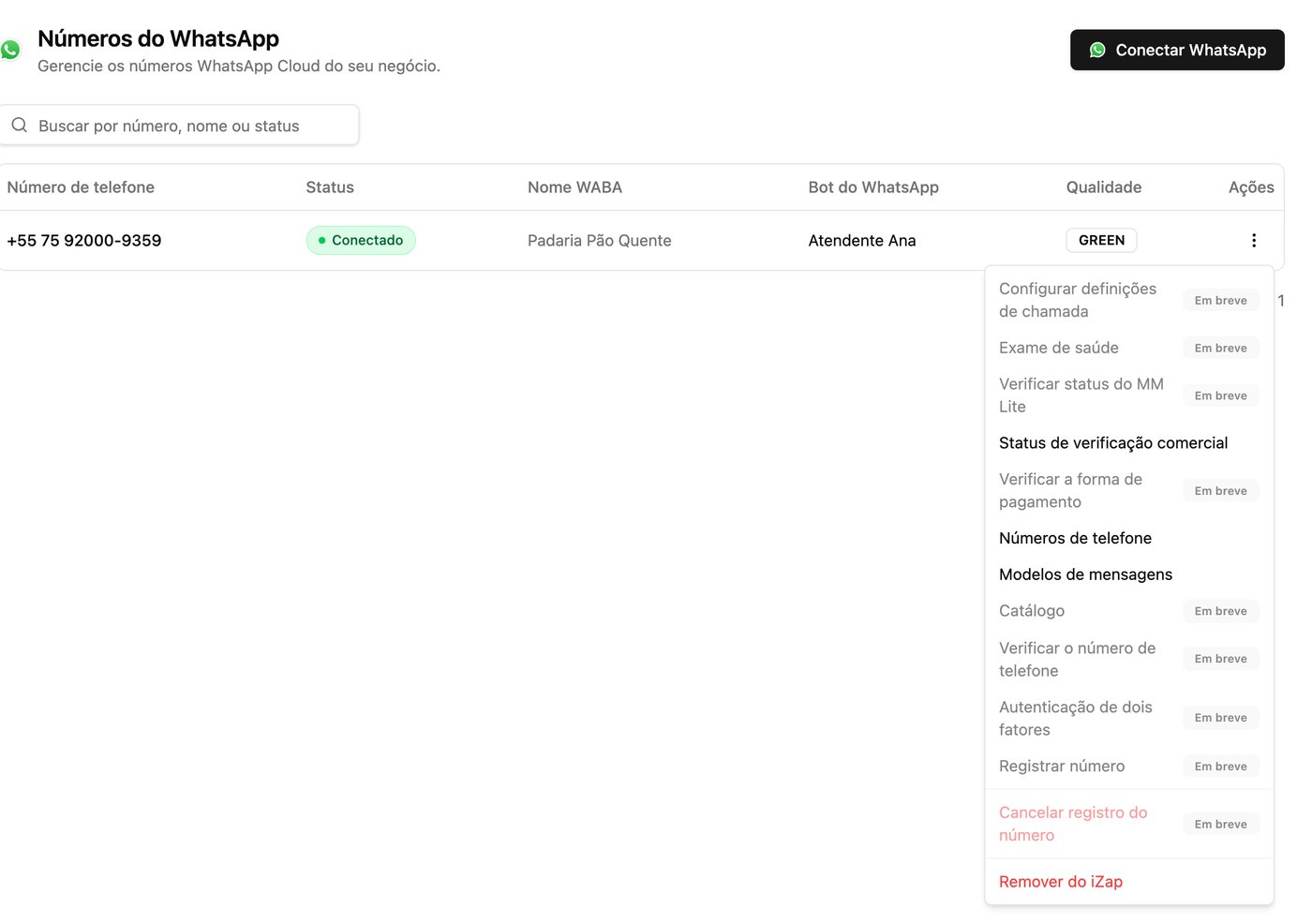
What each status means
The status details show three items — Provisioning, Receiving, and
Sending — and point out which one has a problem. For example, “The last
send failed” means the most recent message didn’t go out.
In the ⋮ menu, Business verification status shows your Meta account
details, such as the state of your business verification.
When the number disconnects
If the number disconnects, the dashboard shows a red notice with a Reconnect WhatsApp button. It opens the same Meta connection flow, through the Trainer. If the workspace already has an active connection, the Trainer warns that continuing may update or replace the current configuration.
Remove a number from iZap
1
Open the list of numbers
In Integrations → WhatsApp, find the number in the list.
2
Choose Remove from iZap
Click the ⋮ menu in the Actions column and choose Remove from
iZap.
3
Confirm
Read the notice and click Remove number.
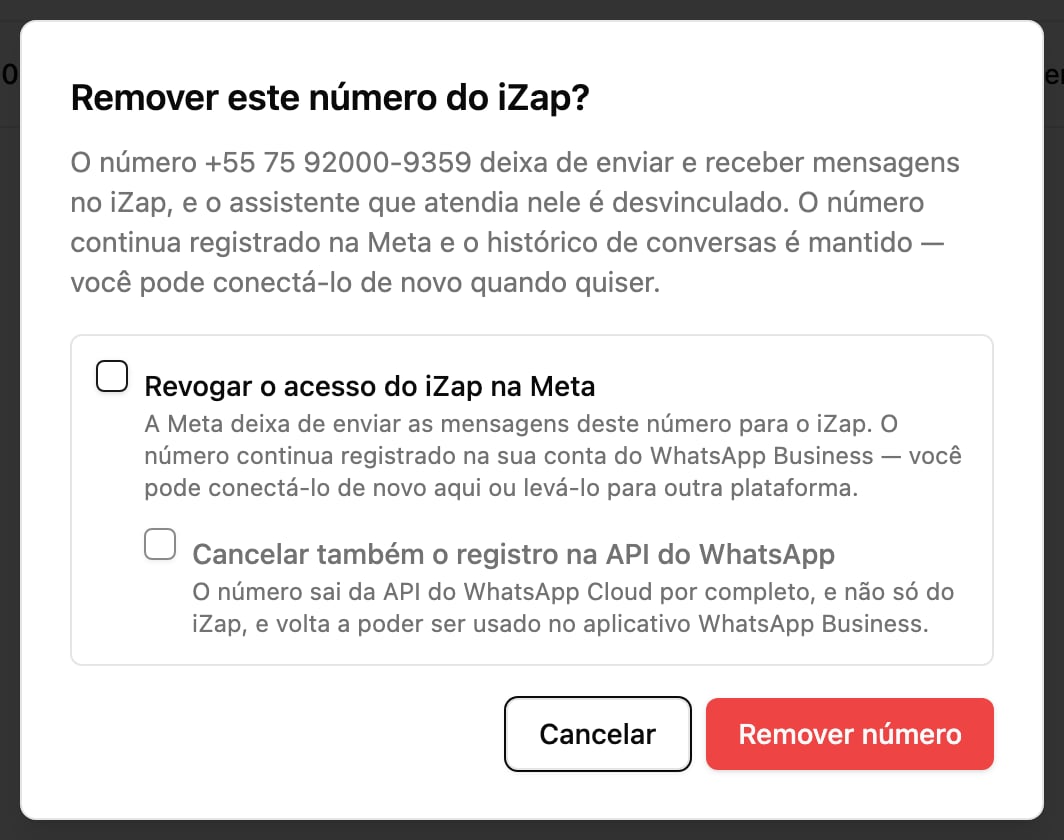
- The number stops sending and receiving messages on iZap.
- The assistant answering on that number is detached from it.
- The number stays registered with Meta and your conversation history is kept. You can connect it again whenever you want.
Only the workspace Owner can remove numbers. Just want the AI to stop
replying, without disconnecting the number? See
Control the AI’s replies.
Disconnect from the WhatsApp Business app
If you use the WhatsApp Business app on your phone together with iZap, you can also disconnect the platform from the app itself:- Android: tap the ⋮ menu → Settings → Account → Business Platform → disconnect → confirm.
- iPhone: tap Settings (bottom right) → Account → WhatsApp Business Platform → tap to disconnect → confirm.
Connect more than one number
A workspace can hold more than one number. The second number is connected without touching the first one’s configuration:- In Integrations → WhatsApp, click Connect another number.
- Follow Meta’s flow, as in the Connect WhatsApp guide. Pick the same business portfolio and enter the new number.
- Back in the dashboard, the Choose the number to connect screen lists the numbers in your Meta account. Pick the new one and click Connect this number. The number that was already connected stays as it is.
How many numbers you can connect depends on your plan: Scale includes 2, and
the other plans include 1. On a paid plan you can add more with the Extra
number add-on under Settings → Plans. When your plan has no room
for another number, the dashboard says so and doesn’t connect it.